Check channel health on the overview page
Use the channel overview as the daily checkpoint: which channels are bound, which accounts are online, and which channels still need an owner.
- Who uses it
- Administrators
- Content updated
- 2026-11-26
Sign in to your company workspace first. Add the /app/… paths below to your company system URL.
Before you start
- Channel-management access. Binding a new channel is covered by the per-channel connection guides.
Steps
Read the four summary tiles
Open Customer service → Channels → Channel overview at /app/channels/overview. 接入渠道 counts channels with at least one bound account; 在线账号 shows online accounts against all bound accounts; 负责客服 counts accounts with an assigned owner; 待指派 counts accounts without one. 待指派 is the number to clear first — an account without an owner has no default responder.
Expected result: You know the overall channel state in one glance.

Inspect each channel card’s status
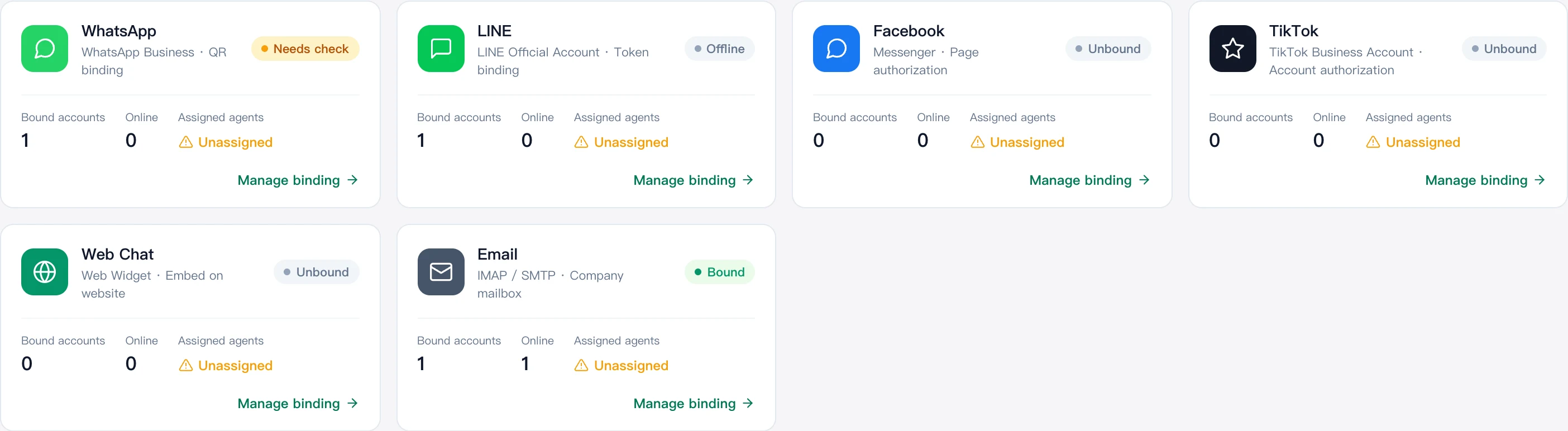
Each card shows the binding status: Bound (green), Not bound (grey), Offline (bound account offline) or Needs attention (yellow). Compare bound accounts against online: a bound-but-offline account means messages may not arrive even though the channel looks set up.
Expected result: You can name the unhealthy channel and its exact state.
Fix what the overview found
Manage binding opens that channel’s own management page — use the connection guides in this manual for first-time setup. For a bound-but-offline account, re-check the token or rescan on the channel page; for unassigned accounts, assign a responsible agent so new conversations have an owner. After any fix, return to the overview and confirm the badge turned green.
Expected result: Every bound account is online and has a responsible agent.