Bring data in and get exports out
Use the integration overview to see every data path at a glance, import custom sources, and understand advanced export rules.
- Who uses it
- Administrators
- Content updated
- 2026-11-26
Sign in to your company workspace first. Add the /app/… paths below to your company system URL.
Before you start
- External integrations enabled (feature gate) and integration management permission.
Steps
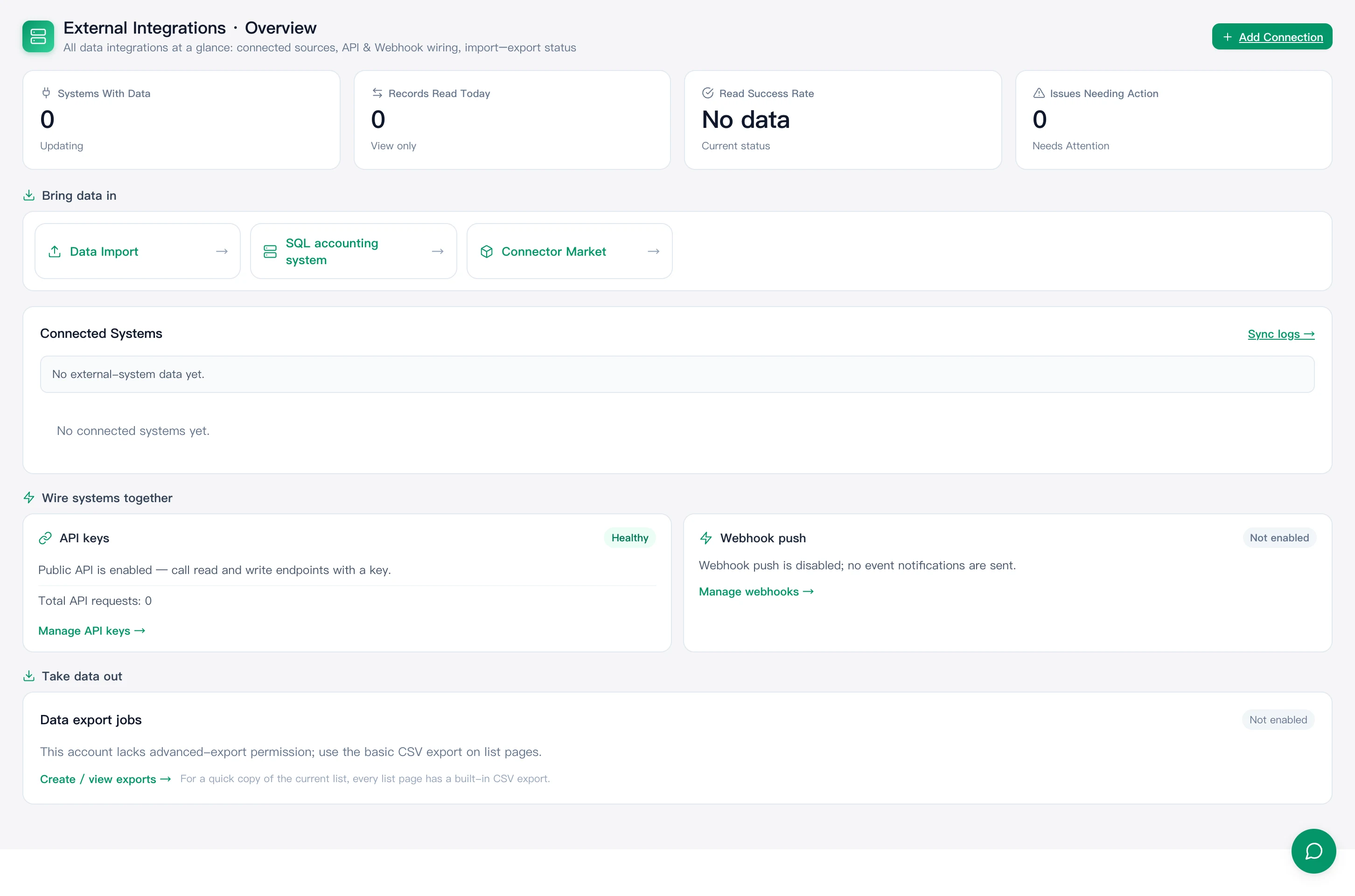
Read the overview’s four zones
Open External Integrations at /app/int/overview. 把数据弄进来 covers 数据导入 (SQL Accounting, connector catalog); 让系统联动 covers API keys and Webhook pushes with live status; 把数据导出去 links the export tasks; the top tiles show systems with data, today’s reads, read success rate and issues needing attention.
Expected result: You can name every data path and its current state.
Import a custom source
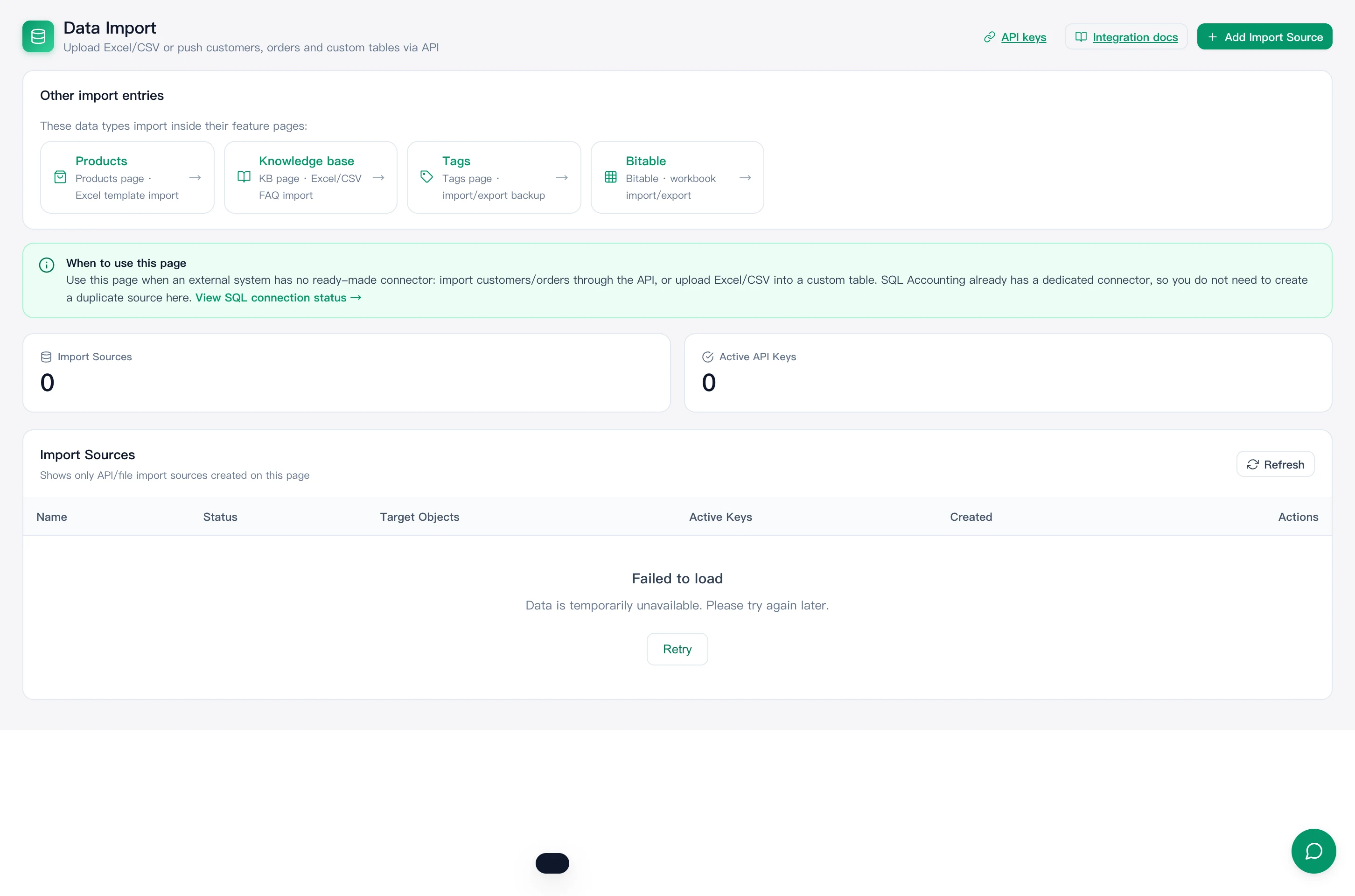
数据导入 at /app/int/custom-source accepts an Excel/CSV upload or API pushes for customers, orders and custom tables. Follow the page’s template and scope notes; a card in the connector catalog alone does not mean data is flowing — check 同步日志 on the overview for the latest read result.
Expected result: Data lands with a verifiable sync log entry.
Use advanced exports within their limits
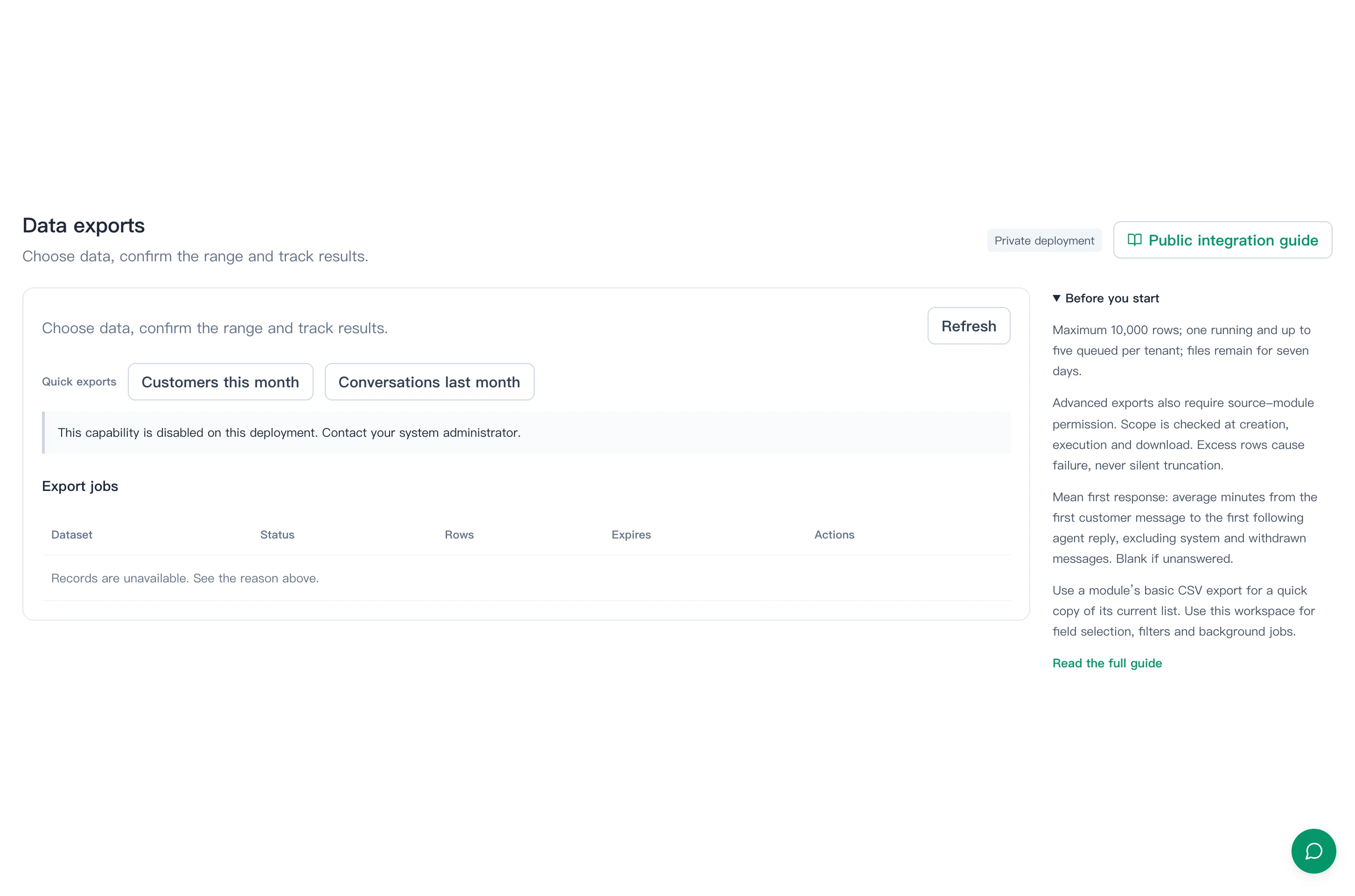
数据导出 at /app/int/exports offers common exports (本月客户, 上月会话) and a task table. The rules shown on the page are binding: at most 10,000 rows; one job runs at a time with up to five queued; files are kept for seven days; and advanced export additionally requires the source module’s export permission, with scope checked at create, run and download. When the deployment has not enabled the capability, the page says so instead of pretending — ask the administrator. 平均首响 on exports means the average minutes from a customer’s first message to the first agent reply, excluding system and withdrawn messages; no reply means empty.
Expected result: Exports run inside the stated limits with a clean audit trail.