Work your inbox in priority order
With many conversations, work the queues in a fixed order: overdue first, then unanswered, then unread — and keep the notification center at zero.
- Who uses it
- All users
- Content updated
- 2026-11-25
Sign in to your company workspace first. Add the /app/… paths below to your company system URL.
Before you start
- Access to the shared inbox.
Steps
Read the filter bar as your queue map
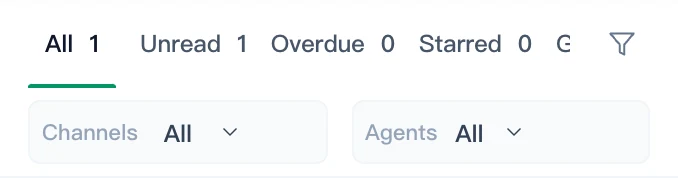
At the top of /app/inbox, the filter bar shows live counts for all, unread, overdue, starred, group and unanswered conversations. Each chip filters the list to that queue.
Expected result: You can see at a glance which queues need attention.
Work in the fixed order
Clear overdue conversations first — those customers have waited longest and are most likely to walk away. Then clear unanswered ones, then unread. Group conversations can follow after the person-to-person queues.
Expected result: The longest-waiting customers are answered first.
Keep the notification center at zero
The bell at the top right counts unhandled notifications — new conversations, service-level alerts and transfers to you. Open it and process items rather than letting the number grow.
Expected result: Nothing that reached you sits unnoticed.
Star what must not be missed
Use the star action on a conversation to keep it in the starred queue. Review the starred queue during the day.
Expected result: Important conversations have their own visible place.