Connect a LINE Official Account
Copy the Channel ID, access token and secret from the LINE Developers console into AllOne Sales, then assign an agent and verify with a real message.
- Who uses it
- Administrators
- Content updated
- 2026-07-22
Sign in to your company workspace first. Add the /app/… paths below to your company system URL.
Before you start
- A LINE Official Account with a Messaging API channel in the LINE Developers console
- Access to that console — the three values can only be read there
- At least one team and one agent exist, because binding requires assigning a responsible agent
Steps
Collect three values from the LINE Developers console
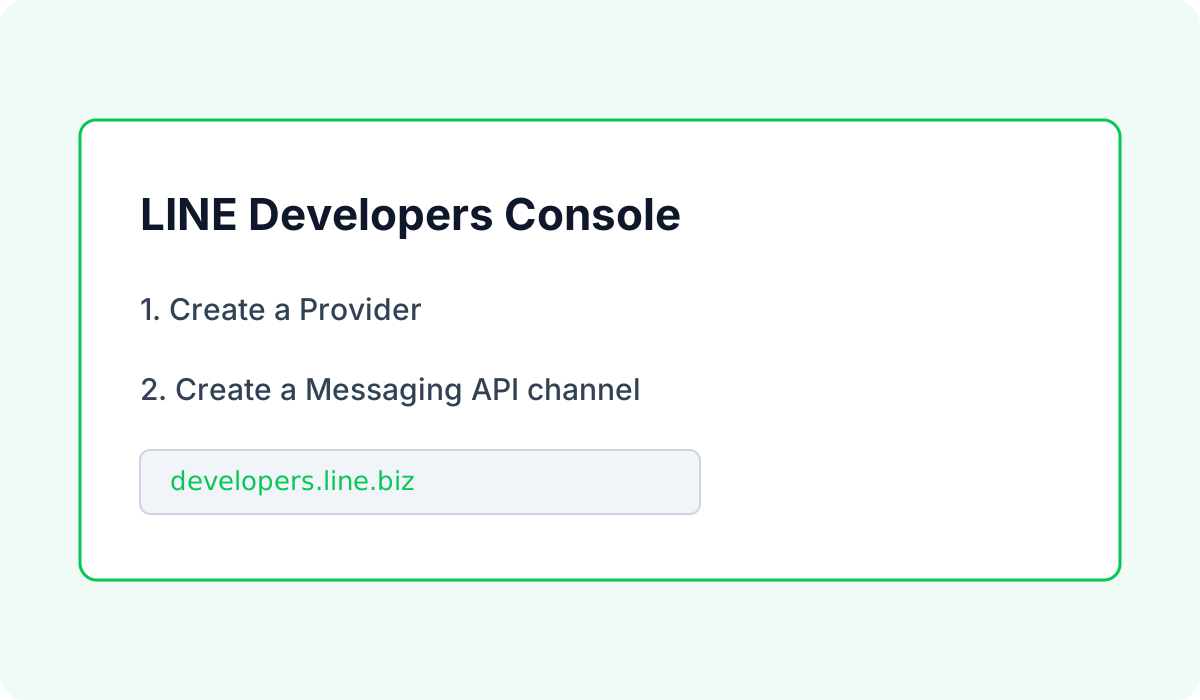
Open the LINE Developers console, go to your Provider and open the Messaging API channel for this Official Account. Basic settings holds the Channel ID and the Channel secret; the Messaging API tab holds the Channel access token — issue a long-lived one. A LINE Login channel looks similar but will not work here, so make sure you are on the Messaging API channel.
Expected result: You hold a Channel ID, a long-lived access token and a Channel secret.
Fill the four fields in AllOne Sales
Open Channels → LINE and start a new binding. Give the account a display name your colleagues will recognise, then paste the Channel ID, access token and Channel secret. AllOne Sales checks the Channel ID format and validates the token with LINE before creating anything. Invalid credentials create no binding and leave your inputs intact for correction; only verified credentials are stored encrypted.
Expected result: The credentials are verified before the inbox is created, then you assign an agent.
Assign the responsible agent
In the second step, search for and select the agent who takes first response for this Official Account. The agent is required — the dialog will not let you finish without one.
Expected result: Messages to this Official Account arrive with a named owner.
Configure and verify the webhook
On the completion page, or later in Channels → LINE → Connection settings, use Automatic setup / retest. The server reads the current endpoint first. An empty or matching endpoint is safe; another active endpoint requires Confirm replacement before anything changes. It then tests and rereads the provider: only active_match means connected. If automation is unavailable, copy the URL into LINE Developers Console manually as before. Connection settings also keeps the real token/webhook state, credential rotation and Recheck; merely opening it never changes configuration.
Expected result: Only an active matching endpoint counts as connected; PUT or test success alone is not proof. Manual copying remains available.
Verify both directions with a real message
Health checks separately cover token validity, webhook state, a real inbound message and an agent reply; saving credentials never proves the channel is ready. Quota shows used/limit, unlimited, or temporarily unavailable with the last checked time. Still add the Official Account as a friend from a personal LINE account, send a real message, and confirm the reply arrives on the phone. Replies within about one minute use the free reply channel; later replies count against the monthly free push quota.
Expected result: A message travels in and a reply travels back out through the shared inbox.