Read the live board and act on SLA alerts
Check what needs attention right now: who is working on what, which conversations are waiting, and which response targets are at risk.
- Who uses it
- Administrators, Employees
- Content updated
- 2026-11-26
Sign in to your company workspace first. Add the /app/… paths below to your company system URL.
Before you start
- Live board access (supervisors see their own team; administrators see all data) and at least one connected channel receiving conversations.
Steps
Open the live board
Open Customer service → Reports → Live board at /app/live-board. The page refreshes itself every 15 seconds, so numbers move on their own; do not keep a stale copy open from hours ago and treat it as current.
Expected result: You are looking at the current state, not a stale snapshot.

Read the six tiles with their counting rules
Active counts assigned, awaiting-reply or in-progress conversations with activity in the last 24 hours. New today and Resolved today count today’s calendar day. Unassigned counts actionable conversations without an owner — these are not left hanging: within about 5 minutes the system assigns them to the inbox’s default owner. Due soon and Overdue compare each conversation’s latest customer message against the response target set in SLA settings.
Expected result: You can explain each number’s scope instead of guessing why two reports differ.
Use the agent workload panel to balance work
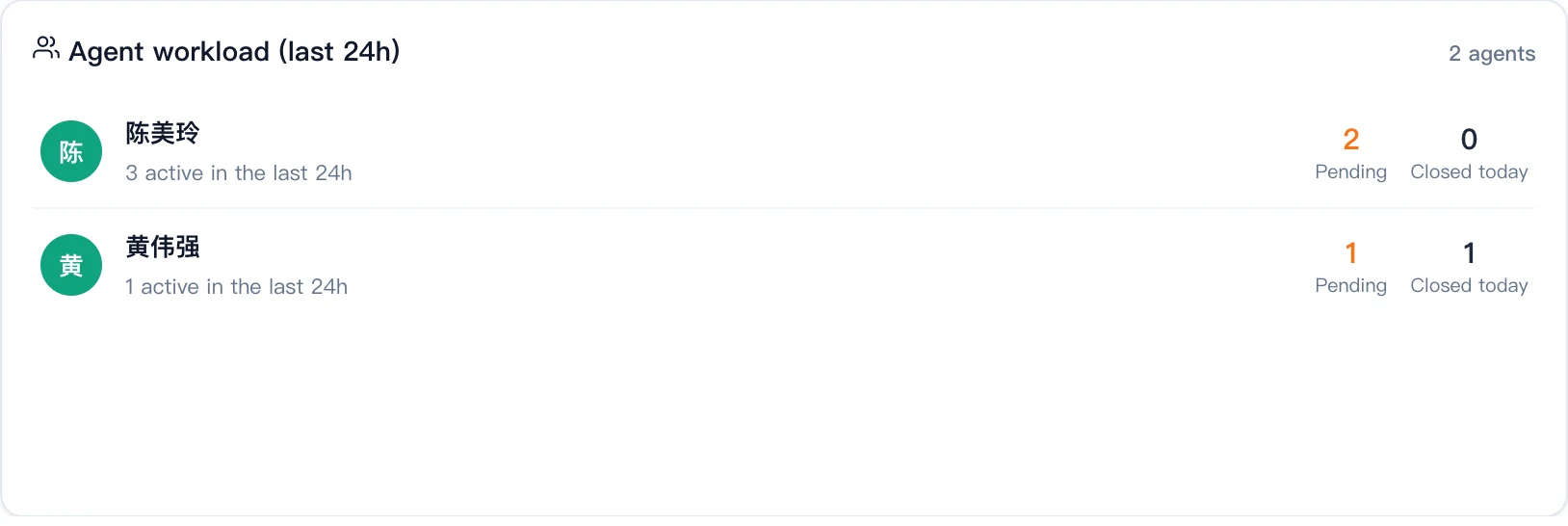
The workload card shows each agent’s active, awaiting-reply and resolved-today counts for the last 24 hours. Waiting-customer and historical open conversations are not counted there, so an agent showing low load may still be the right person to take a handover.
Expected result: You can see who is actually carrying conversations right now.
Work the SLA alerts list top down
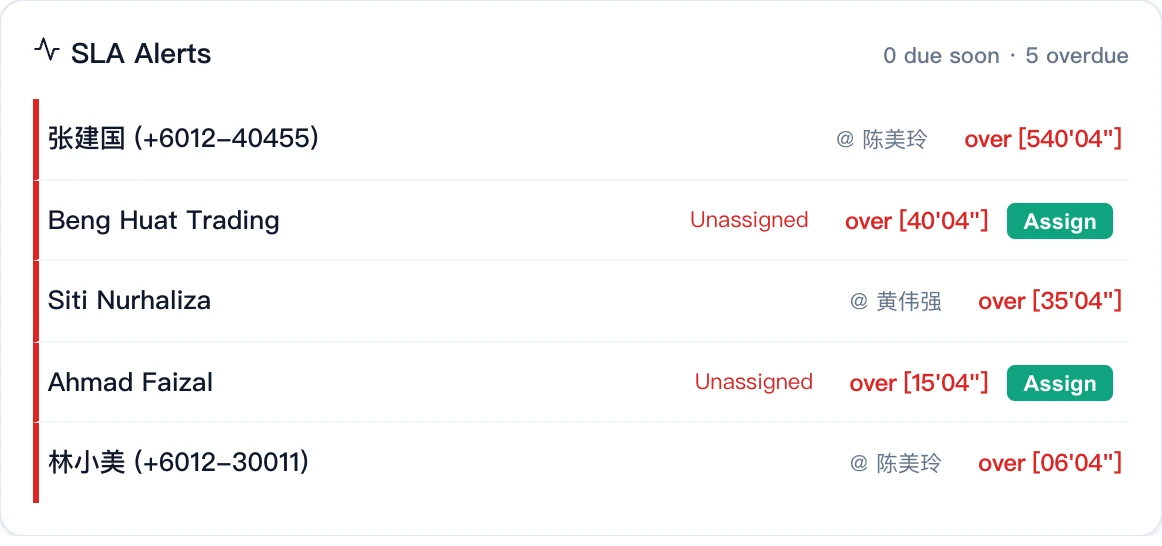
SLA Alerts lists due-soon first, then overdue, each with the conversation owner (or Unassigned) and how far past the target it is. Open the conversation, reply, or use Assign on unassigned rows. Replying to the customer is what stops the timer; refreshing the board does not.
Expected result: Every listed conversation has been replied to, assigned, or consciously deferred.
Trust the channel banner before the numbers
When the page shows a red “all channels offline” or yellow “some channels degraded” banner, inbound messages may be stopped while the queue keeps aging. Check 渠道总览 for which channel is down before drawing conclusions from the tiles.
Expected result: You know whether the numbers describe real customer activity or a channel outage.