Connect Facebook Messenger Pages
Choose an authorization method, check the connected Pages, assign their agents and verify messages in both directions.
- Who uses it
- Administrators
- Content updated
- 2026-09-09
Sign in to your company workspace first. Add the /app/… paths below to your company system URL.
Before you start
- Permission to manage the intended Facebook Pages and AllOne Sales channels.
- A browser that can open the Facebook authorization pop-up.
- Use System User only when the administrator confirms that this method is already configured.
Steps
Choose one connection method
Open Channels → Facebook at /app/channels/fb and start a new binding. For Facebook sign-in, choose Sign in with Facebook and continue to step 2. If the administrator has configured System User, use Switch to System User to sync its accessible Pages, then continue to step 3. These are alternatives; do not run System User after a successful sign-in merely because it appears in this guide.
Expected result: The selected method opens authorization or returns the sync result.
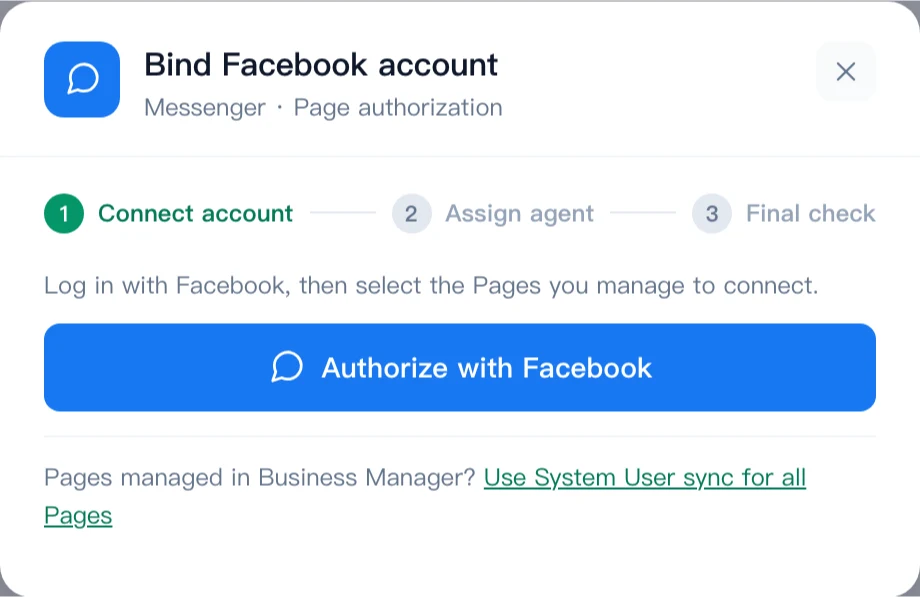
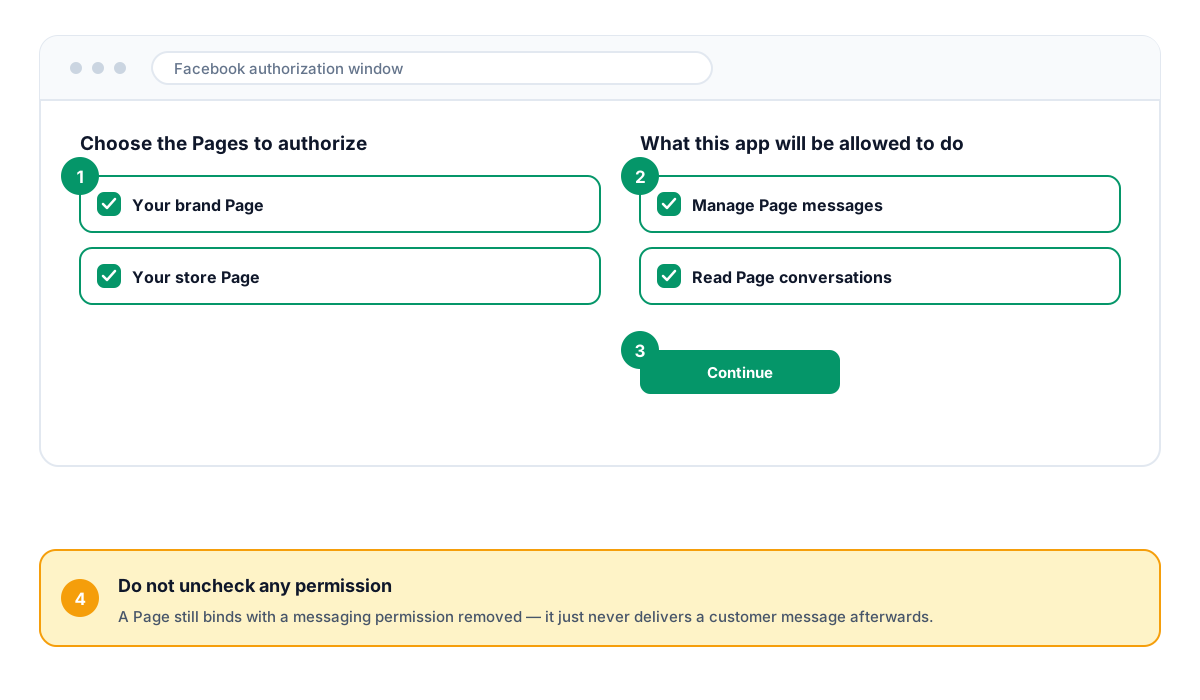
For Facebook sign-in: select Pages and review access
In the Facebook window, check the signed-in account, select the Pages you intend to connect, and review the requested messaging access. Confirm to return to AllOne Sales. If the window does not open, check whether the browser blocked it. System User users skip this step.
Expected result: The intended Pages are authorized and AllOne Sales shows the connection progress.
Check each Page’s result
Read the result list after the Pages are processed. Separate successful and failed Pages. A failed Page is not ready for service; follow its error before retrying that Page. Authorization completion alone does not mean every Page connected.
Expected result: You know which Pages succeeded and which still need attention.
Assign the responsible agents
Open the channel list and set the responsible agent for each connected Page. The Facebook bulk authorization dialog does not ask for one agent per Page; check assignment in the list after the connection completes.
Expected result: Each Page intended for service has its responsible agent configured.
Test an incoming message and reply
Use an independent test customer account to message the Page. Find the conversation in AllOne Sales, reply and check the receiving account. Repeat the check for each Page you intend to put into service.
Expected result: A real incoming message and reply work for the Page being connected.