Connect a TikTok account
Confirm that TikTok messaging is enabled for your workspace and account type, authorize the correct account, assign an agent and verify messages.
- Who uses it
- Administrators
- Content updated
- 2026-09-09
Sign in to your company workspace first. Add the /app/… paths below to your company system URL.
Before you start
- Your administrator has confirmed TikTok messaging is enabled for this workspace and your account type is supported
- A TikTok account with the permission to authorize third-party tools
- A browser that allows pop-up windows, because authorization opens in one
Steps
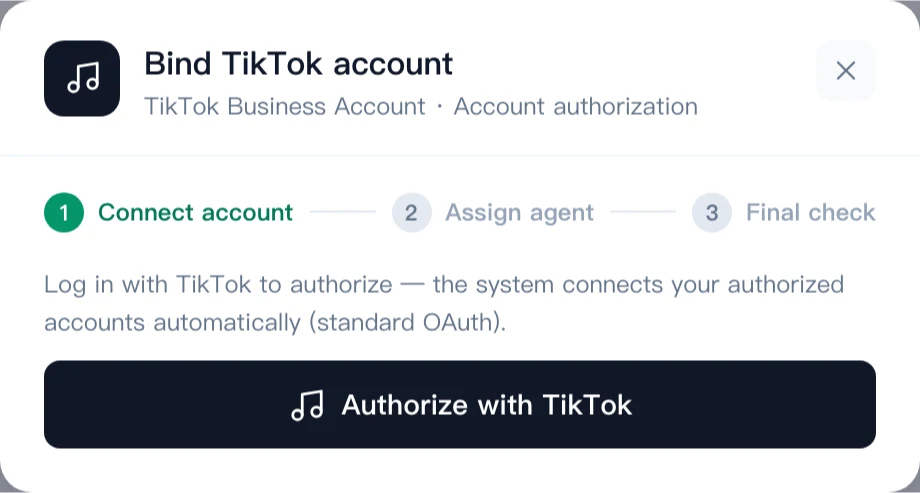
Confirm workspace access, then open Channels → TikTok
Feature availability explains public support conditions; it does not check your company’s activation. Ask your administrator to confirm that TikTok messaging and your account type are enabled in the workspace. Then open Channels → TikTok at /app/channels/tiktok and start authorization. If the entry is unavailable, resolve that condition first.
Expected result: The TikTok authorization window opens on top of AllOne Sales.
Sign in to TikTok and confirm the authorization
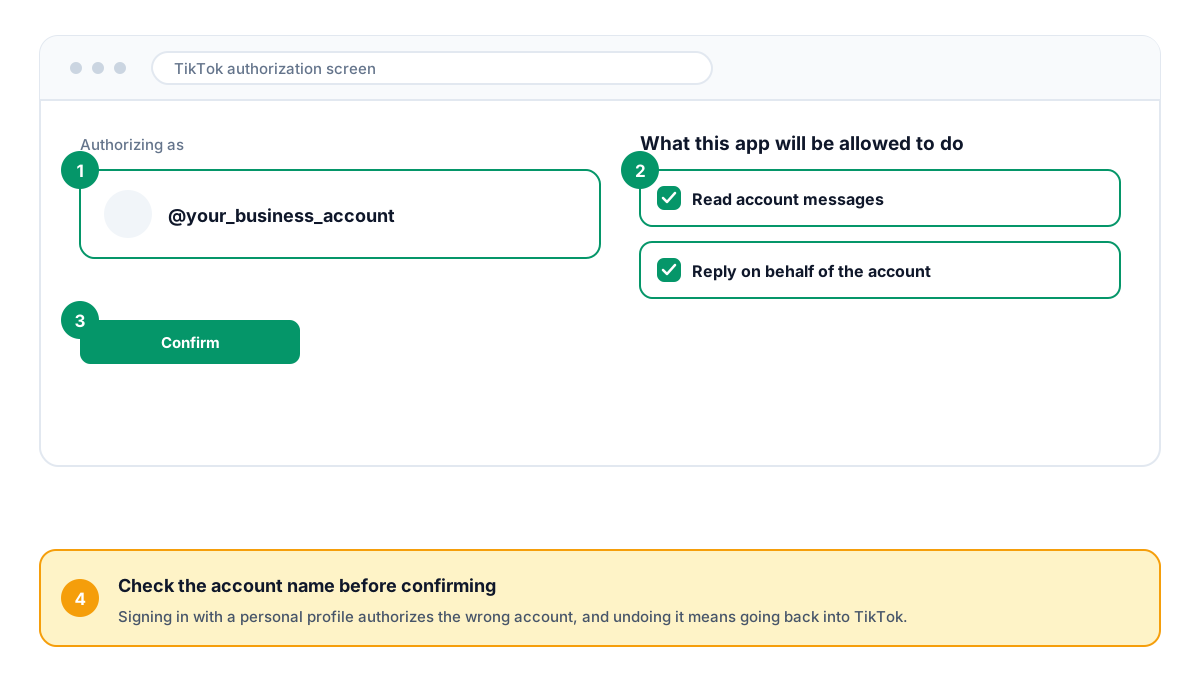
Check the account name in the TikTok authorization window and review the requested access before confirming. Use the account your administrator verified for this messaging connection. A TikTok Shop relationship alone does not prove messaging eligibility.
Expected result: TikTok returns to AllOne Sales and the dialog starts syncing.
Assign the responsible agent
After the sync the dialog asks who takes first response for this account. Unlike the Facebook path, this step is not skipped: one authorization brings in one account, so an owner is set right away.
Expected result: The account has a named owner before it goes live.
Read the self-check, then send a real message
The last step runs a self-check against the backend. After it passes, message the authorized account from a separate TikTok account, find the conversation in the shared inbox, and reply from there. Treat the channel as live only after that reply is received — an authorization that saved is not proof that messages flow.
Expected result: A message travels in and a reply travels back out through the shared inbox.