Install and test website chat
Create a chat widget, paste one snippet of code into your website, then assign an agent and verify with a real conversation from the live site.
- Who uses it
- Administrators
- Content updated
- 2026-09-09
Sign in to your company workspace first. Add the /app/… paths below to your company system URL.
Before you start
- Someone who can edit the website template — the snippet has to go into the pages themselves
- The public address of the site that will show the widget
- At least one team and one agent exist, because binding requires assigning a responsible agent
Steps
Create the widget
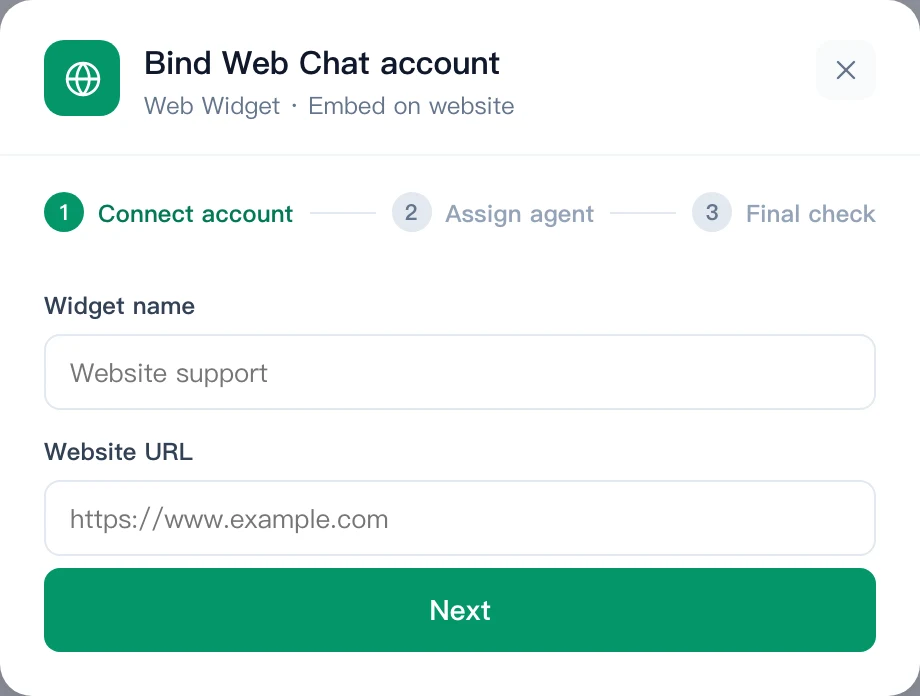
Open Channels → Web chat and start a new binding. Give the widget a name your colleagues will recognise and enter the website address it will run on. If your workspace already has teams, this step also offers an owning team.
Expected result: The widget exists and AllOne Sales generates its snippet.
Paste the snippet before the closing body tag
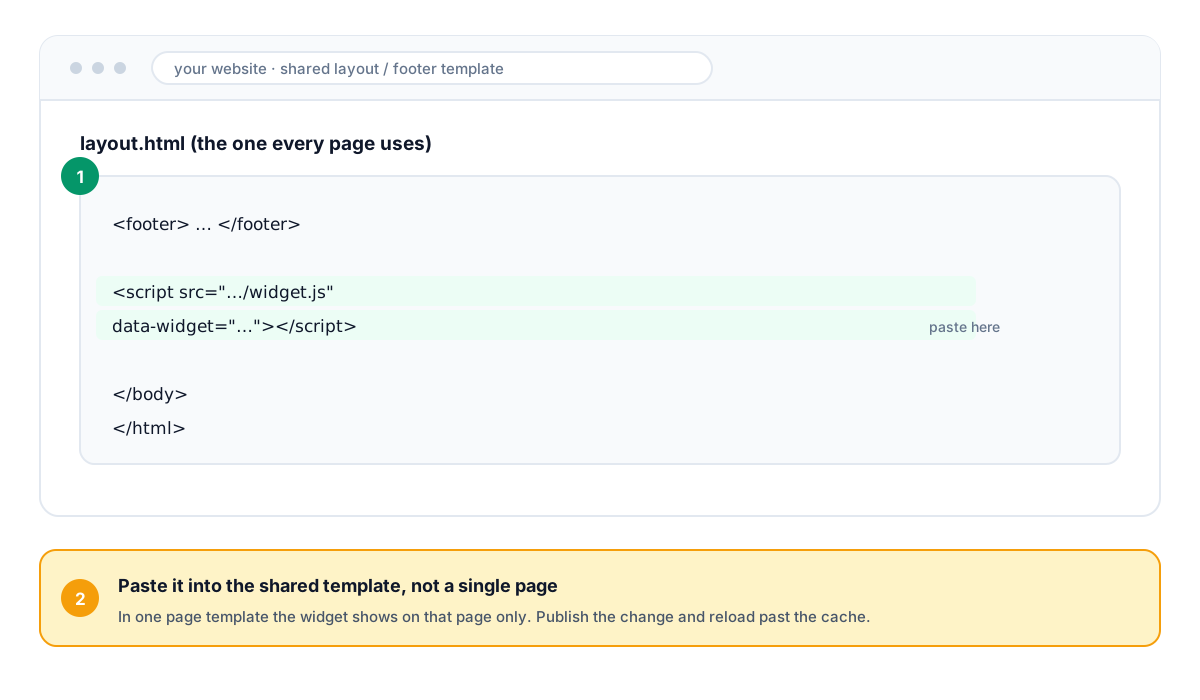
Have the website maintainer copy the generated snippet and paste it immediately before the closing </body> tag, in the shared layout or footer template so it lands on every page rather than one. In a CMS this is usually a "custom code", "footer scripts" or "site-wide HTML" box. Publish the change.
Expected result: The chat bubble appears on your live site.
Assign the responsible agent
Back in AllOne Sales, search for and select the agent who takes first response for website visitors. The agent is required — the dialog will not let you finish without one.
Expected result: Visitor conversations arrive with a named owner.
Start a real conversation from the site
Open your own website as a visitor would — a private window is enough — start a chat, then find it in the shared inbox and reply. Watch the reply land back in the browser window. Only then is the widget genuinely live.
Expected result: A visitor message and the agent reply both appear on the live site.