Connect WhatsApp by scanning a QR code
Link a WhatsApp account by scanning a QR code from the phone that owns the number, then assign an agent and verify with a real message.
- Who uses it
- Administrators
- Content updated
- 2026-09-09
Sign in to your company workspace first. Add the /app/… paths below to your company system URL.
Before you start
- The phone that owns the WhatsApp number, unlocked and online — scanning happens on that phone
- The number is not already linked to another account in this workspace
- At least one team and one agent exist, because binding requires assigning a responsible agent
Steps
Open Channels → WhatsApp and start the binding
In AllOne Sales open Channels → WhatsApp and start a new binding. The dialog runs three steps: connect the account, assign an agent, then a completion self-check. It takes a free connection slot and generates a QR code in the box; the code appears within a few seconds and refreshes itself while you wait.
Expected result: A QR code is on screen and the dialog says it is waiting to be scanned.
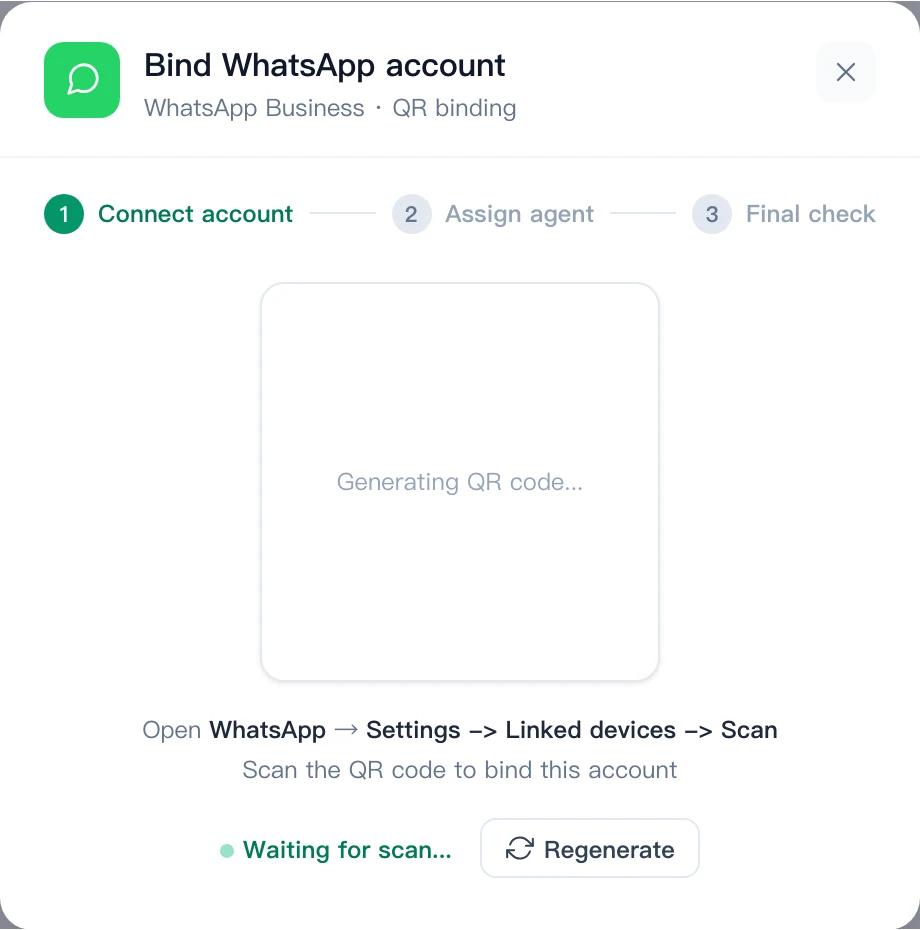
Scan the code from the phone
On the phone that owns the number, open WhatsApp → Linked devices → Link a device and scan the code. On iPhone, Linked devices is under Settings; on Android, it is in the main menu. The phone must be unlocked and online for this linking step.
Expected result: The dialog stops waiting and shows the connected phone number.
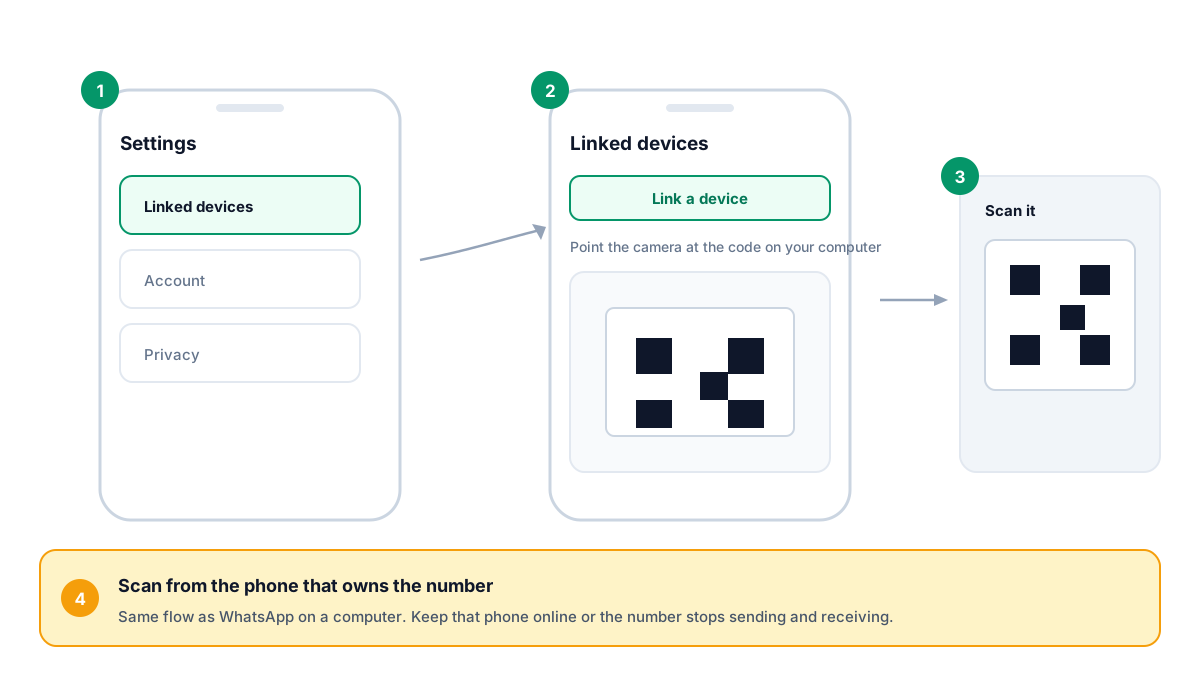
Assign the responsible agent
In the second step, search for and select the agent who takes first response for this number. The agent is required — the dialog will not let you finish without one.
Expected result: Messages to this number arrive with a named owner.
Read the self-check, then send a real message
Read the connection-check results, send a WhatsApp message from a different account, then reply from the shared inbox and confirm receipt. WhatsApp’s official linked-device feature does not require the primary phone to stay online continuously; more than 14 days without using that phone can log linked devices out. Check the actual AllOne Sales channel state and any connector-specific message rather than assuming an official desktop rule proves this connector is working.
Expected result: A message travels in and a reply travels back out through the shared inbox.